Scan or import
Import data or scan directly into SOLIDWORKS with supported scanners. 2025.1 adds clip plane selection during scanning and shows point colors and normals while you scan.

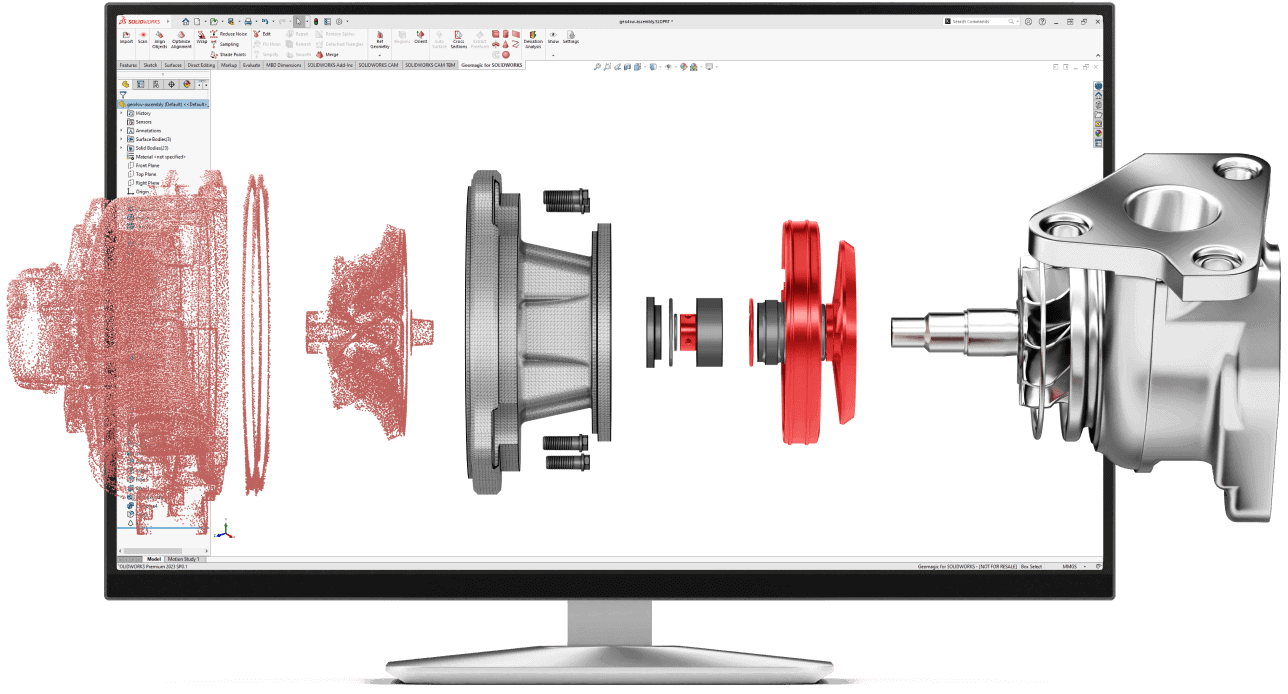
Geomagic for SOLIDWORKS 2025.1
Geomagic for SOLIDWORKS is a reverse engineering plug-in that runs inside SOLIDWORKS. It brings scan data into the SOLIDWORKS workspace, cleans it up, and gives you tools to turn it into features and surfaces that become part of a normal SOLIDWORKS model.
You can scan directly into SOLIDWORKS with supported FARO, Hexagon, Nikon and Creaform devices, send data from Artec Studio, or import point clouds and meshes from most scanners on the market. From there, segment the mesh into regions, extract planes, cylinders, extrusions, revolves and sweeps, autosurface the rest, and check the result against the scan with deviation analysis.
Geomagic is now part of Hexagon, which completed its acquisition of the Geomagic software business from 3D Systems in April 2025. The current release, Geomagic for SOLIDWORKS 2025.1.1, supports SOLIDWORKS 2021 to 2025.
What it does
Geomagic for SOLIDWORKS adds its own ribbon tab to SOLIDWORKS, so you work on the scan data and the model you build from it in the same SOLIDWORKS session.
Import data or scan directly into SOLIDWORKS with supported scanners. 2025.1 adds clip plane selection during scanning and shows point colors and normals while you scan.
Straightforward handling and refinement of large point cloud and mesh data sets: merge, wrap, delete, repair and bridge holes. 2025.1 adds a check for degenerate triangles during mesh repair.
Segment a mesh into regions, create reference planes and axes, and align the scan to the SOLIDWORKS origin before you model.
Extract planar surfaces, cylinders, cones, spheres, extrusions, revolves, sweeps and freeform surfaces from the scan, and cut cross-sections into SOLIDWORKS sketches.
Autosurface fits accurate surfaces to your mesh automatically, for areas you do not want to rebuild feature by feature.
Compare your 3D model directly to the scan data on a color map. In 2025.1, hovering over the color map shows the deviation value.
Data capture
Geomagic for SOLIDWORKS removes the export and translation step between scanning software and CAD. Supported devices scan straight into the SOLIDWORKS session, and everything else comes in as a file.
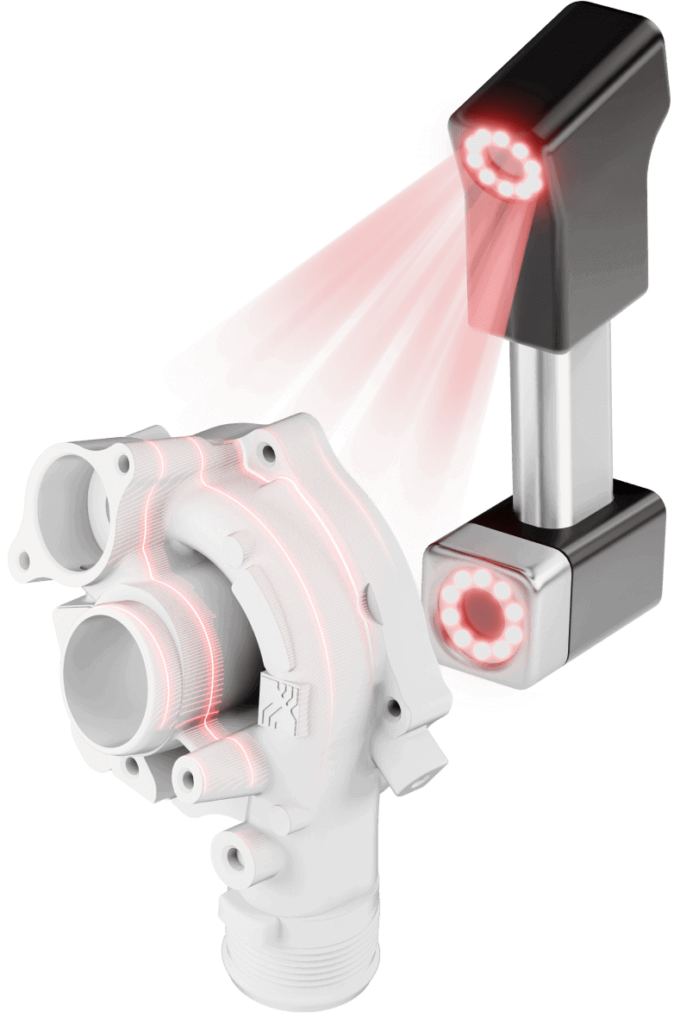
Mesh to features
The core workflow is to let the scan tell you what the design was, then rebuild it as features you can edit.
More in our guide to scan to CAD.
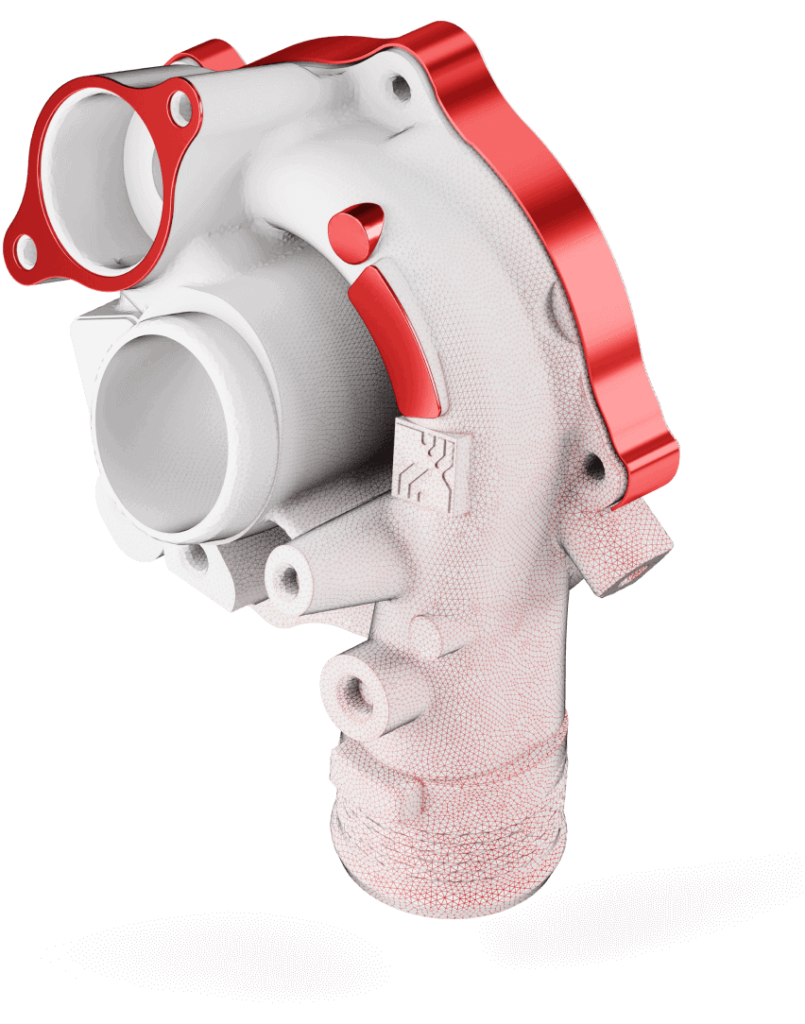
Hybrid modeling
Because the plug-in works inside SOLIDWORKS, the features and surfaces you build from the scan are SOLIDWORKS geometry like any other. You can combine extracted features, autosurfaced areas and regular SOLIDWORKS features in one model, which Hexagon’s training calls hybrid modeling.
Working on a part that is no longer made? See our guide to reverse engineering discontinued parts.
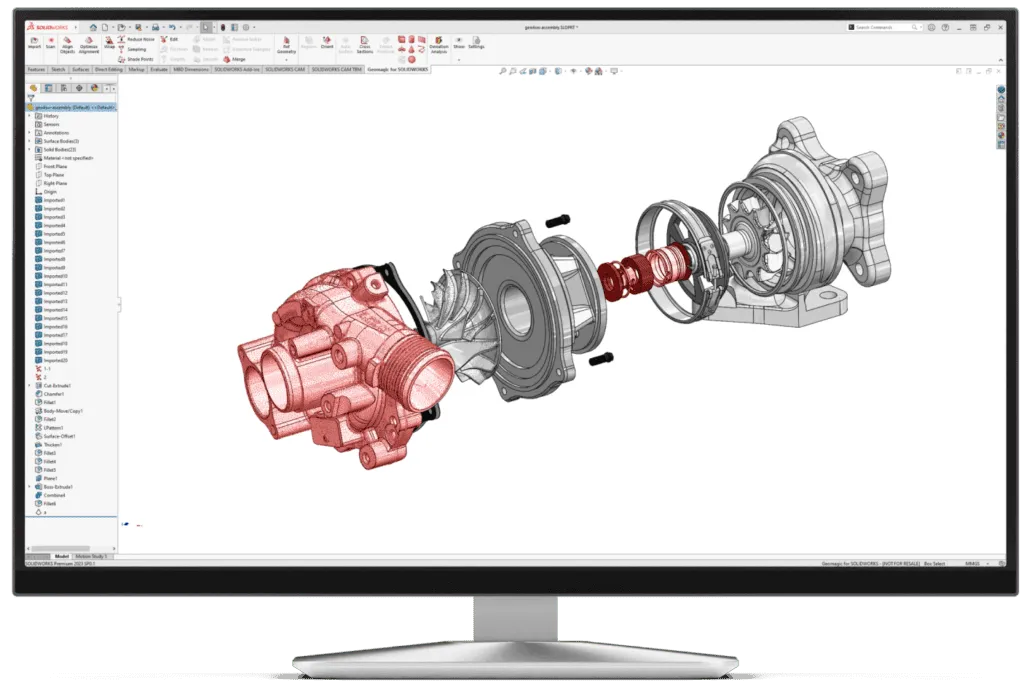
How it works
Scan directly into SOLIDWORKS with a supported device, or import a mesh or point cloud.
Edit and repair the mesh, then align it to the origin with reference geometry.
Split the mesh into regions, then extract features, sketches and surfaces.
Finish the part with SOLIDWORKS features and check it against the scan with deviation analysis.
Compatibility
As published by Hexagon for Geomagic for SOLIDWORKS 2025.1.1.
Using a scanner from us? Artec scanners send data to Geomagic for SOLIDWORKS straight from Artec Studio. SCANOLOGY scanners are not on the direct-scanning list, so their scans come in as standard mesh or point cloud files, such as STL, PLY or E57. Other versions of SOLIDWORKS may work, but Hexagon only supports 2021 to 2025.
Technical specifications
Requirements for Geomagic for SOLIDWORKS 2025.1 as published by Hexagon. SOLIDWORKS itself must also be installed and meet its own requirements.
Lowest supported configuration.
For large scans and complex reverse engineering projects.
Buying a workstation for scanning? Ask us before you order and we will check the spec.
Why buy from us
We sell, set up and support 3D scanners and reverse engineering software together, so you have one team to call for the whole workflow.
We can arrange a free trial of Geomagic for SOLIDWORKS so you can test it on your own scan data before you buy.
Training, technical support and updates are included with all software we sell.
Pair Geomagic for SOLIDWORKS with a scanner we sell and set up, and keep one point of contact.
Need a model built for you instead? Our reverse engineering services turn your parts into CAD.
Request a free trial, or talk to one of our engineers about your parts, your scanner and the CAD you need at the end.
Already a Geomagic user? Renew your license or maintenance.
Reverse engineering inside SOLIDWORKS. It brings 3D scan data into the SOLIDWORKS workspace and gives you tools to clean it, segment it, extract features and surfaces, and check the finished model against the scan, so you end up with a SOLIDWORKS part instead of a mesh.
Geomagic for SOLIDWORKS 2025.1.1 officially supports SOLIDWORKS 2021 to 2025. Other versions may work but are not officially supported, and the plug-in does not work with the 3DEXPERIENCE SOLIDWORKS platform.
Hexagon. It completed the acquisition of the Geomagic software business from 3D Systems on April 2, 2025. Downloads, release notes and the knowledge base are on Hexagon’s Geomagic support site.
Version 2025.1.0 (September 2025) added numerical deviation values on the color map, a degenerate triangle check in mesh repair, a mesh transparency mode, faster region display, a reorganized ribbon, clip plane selection during scanning, and E57, TXT and PLY point import. Version 2025.1.1 (November 2025) is a maintenance release with bug fixes.
Hexagon lists the FARO ScanArm with Laser Line Probe, the FARO Cobalt Array Imager, Hexagon Romer Absolute arms, Nikon MCAx and Creaform handheld scanners. Artec scanners can send data directly from Artec Studio. Data from other scanners can be imported as mesh or point cloud files.
Meshes in STL, OBJ, PLY and G3D, point clouds in E57, PTS, ASC, XYZ, TXT, SCN and VTX, and gridded points in PTX, BTX, 3PI, AC and GPD, plus Geomagic GEODOC files.
Geomagic for SOLIDWORKS works inside your SOLIDWORKS workspace. Geomagic Design X is a separate, standalone scan-to-CAD application from Hexagon for reverse engineering from any scanner into any CAD workflow. If you are not sure which fits, talk to one of our engineers.
Pricing is quoted. It depends on the license type and maintenance. Contact us for a quote or request a free trial.
A SOLIDWORKS workstation on 64-bit Windows 10 or later with at least 8 GB of RAM, 30 GB of free disk space and an NVIDIA GPU with OpenGL 4.0 and 2 GB of VRAM. Hexagon recommends Windows 11, a recent Core i7/i9 or Ryzen 7/9 processor, 32 GB of RAM or more and an NVIDIA RTX card with 4 GB of VRAM or more.
Yes. We can arrange a free trial so you can test Geomagic for SOLIDWORKS on your own scan data before you buy. Request a free trial.
Yes. Training, technical support and updates are included with all software we sell. Hexagon also publishes free Geomagic for SOLIDWORKS training videos, including end-to-end modeling lessons.